Database backups
You can use the Database Backups app to create and restore database backups of non-production and production planets.
Access to this application can be managed by:
-
Guidewire Hub
For details, see Access Cloud Platform apps and services.
-
Access Management
For details, see Guidewire Cloud Platform (GWCP) roles and permissions.
Backup types
There are three types of database backups:
-
Permanent
Permanent backups are created manually and retained until you delete them.
-
Temporary
Temporary backups are created manually and removed automatically after the retention period ends.
-
Scheduled
Scheduled backups are created automatically and then removed after the retention period ends.
After a backup is created, you can't change the backup type.
Backup mechanisms
You can back up your databases using one of the following mechanisms:
| pg_dump | Snapshot | |
|---|---|---|
| Availability | Default for every planet. | Only for planets assigned to an individual AWS Aurora Postgres cluster (snapshot-enabled). |
| Stability while restoring a database | Stable for databases smaller than 250 GB. | Stable for all databases. |
| Backup time | Depends on the size of the database. | Fixed, less than 10 minutes. |
| Restore time | - Depends on the size of the database. - It has no influence on the deployment time which depends on your individual InsuranceSuite configuration. | - Fixed, 30–50 minutes. - It has no influence on the deployment time which depends on your individual InsuranceSuite configuration. |
| Number of parallel restores | - For databases smaller than 250 GB, you can restore many backups in one RDS cluster. - For databases larger than 250 GB, you can restore only one backup in one RDS cluster. | No restrictions. You can restore many snapshots at once. |
| Planet to restore | Any planet within a star system. | Only planets that are snapshot-enabled. |
Retention period
The retention period determines for how many days your database backups are kept.
The following rules apply:
- By default, the maximum retention period is 14 days.
- To modify the maximum length of this period or configure different values for each star system, contact Guidewire. The maximum length of the retention period that you can request is 365 days.
- You can define the length of the retention period when creating a temporary or scheduled backup.
- You can't change the length of the retention period for an already existing backup.
Database settings
You can check the following database settings:
- Whether you can delete the database for a planet.
- RDS cluster assignment.
- Status of snapshot mechanism.
To check the database settings for a planet:
- Select a star system.
- From Apps
 , select Planets or select it from your pinned apps.
 - Select a planet.
- From Applications and add-ons, select InsuranceSuite.
- Go to Settings.
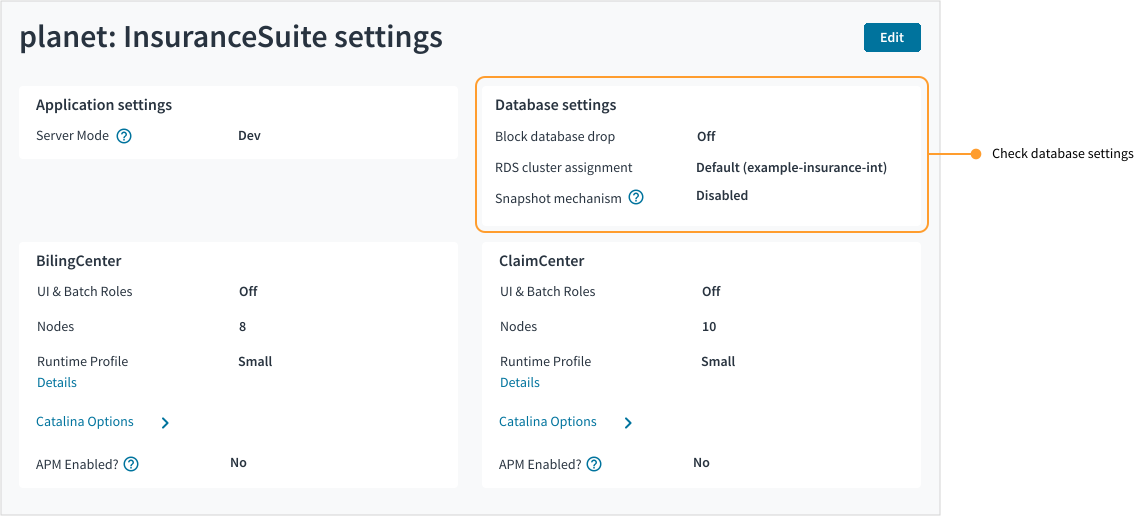
Block database drop for a planet
By default, the Block database drop option is set to:
Offfor development and pre-production planets.Onfor production planets.
When the Block database drop option is set to Off, the database is deleted during the following activities:
-
Deployment of InsuranceSuite apps.
For deploying InsuranceSuite apps, a
Drop databasecheckbox is displayed, so you can choose if you want to deploy with or without dropping the database. If you choose to drop the database, the existing database is deleted and a new database is created immediately. -
Undeployment of InsuranceSuite apps.
-
Deleting of InsuranceSuite apps.
When the Block database drop option is set to On:
-
You can't delete or undeploy InsuranceSuite apps.
-
You can only deploy InsuranceSuite apps without dropping the database.
RDS cluster assignment
Every planet is assigned to an AWS Postgres Aurora cluster. The following rules apply:
-
By default, planets share a common cluster.
More planets can be added to this cluster.
For such planets, the only possible backup mechanism is pg_dump. -
Snapshot-enabled planets have individual assignments to clusters.
A snapshot-enabled planet is the only planet assigned to a cluster. To guarantee that a planet is snapshot-enabled at all times and no other planet is assigned, the RDS cluster should be dedicated. For dedicated clusters, no other planet can be assigned.
For details, see:
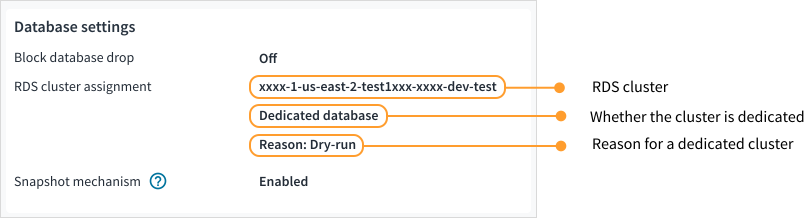
You can check the reason for which a planet was assigned to a dedicated cluster. Dedicated cluster assignment can have one of the following reasons:
-
Add-on
For InsuranceSuite add-ons, such as Solr (Advanced Search).
-
Dry run
For testing apps against a backup of the production database.
-
Performance
For performance testing.
-
Production
This is a production planet.
Check snapshot status
To check if your planet is snapshot-enabled:
-
Select a star system.
-
From Apps
, select Planets or select it from your pinned apps. -
Select a planet.
-
From Applications and add-ons, select InsuranceSuite.
-
Select Settings and go to the Database settings tile.
-
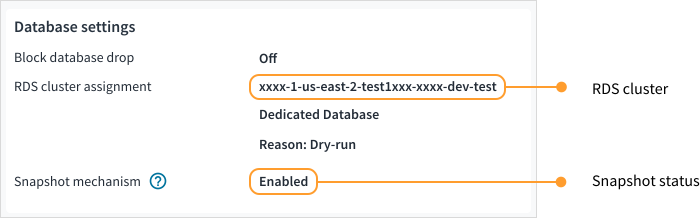
Check the status in RDS cluster assignment and Snapshot mechanism.
If your planet is snapshot-enabled, the RDS cluster assignment shows the name of the assigned cluster and the Snapshot mechanism is
Enabled.For dedicated clusters, you can also see the Dedicated database label and a reason for which the cluster is dedicated.
Make a planet snapshot-enabled
A planet is snapshot-enabled when it's the only planet assigned to an RDS cluster. To enable snapshot for your planet, submit a case in Guidewire Community. To ensure that a planet remains snapshot-enabled and no other planet is assigned to the same RDS cluster, Guidewire recommends that the assigned RDS cluster is dedicated.
A dedicated RDS reduces the Credit amount from your annual Credit subscription. For more information about the cost of dedicated RDS clusters, see additional materials on Guidewire Cloud - Platform Packaging and Pricing.
Data deletion
By deleting a backup or dropping a database during a deployment, you ensure that the data is no longer available.
Deleting a backup doesn't guarantee complete deletion of data from Cloud Platform infrastructure. To ensure recoverability, Guidewire might store internal backups for up to 35 days.
When you restore a snapshot backup, the recoverability period resets from 35 to 2 days for the whole RDS cluster. Then each day, the recoverability period increases by 1, up to 35 days again. This process repeats each time when you restore a snapshot backup.